Best Fortnite settings for low-end PC optimize graphics and performance to ensure smoother gameplay on devices with limited hardware capabilities.
Are you tired of Fortnite lagging and freezing on your low-end PC? You’re not alone.
Getting smooth gameplay can feel impossible when your computer struggles to keep up. But what if you could change your settings to boost performance without sacrificing too much quality? In this guide, you’ll discover the best Fortnite settings designed specifically for low-end PCs.
These simple tweaks will help you enjoy faster load times, higher frame rates, and a more responsive game. Keep reading to unlock the secrets that can turn your gaming experience around today.
Optimizing Graphics Settings
Optimizing graphics settings is vital for improving game performance on a low-end PC. Fortnite is a visually rich game that can be demanding on system resources. Adjusting the right settings helps reduce lag in Fortnite and provides smooth gameplay in Fortnite, even on less powerful machines. By focusing on key graphics settings in Fortnite, players can enjoy a better experience without sacrificing too much visual quality. This section covers important tweaks for gaming PCs and system resource management to boost FPS and stability.
Adjusting Resolution
Resolution directly affects both visual clarity and hardware load. Lowering the resolution reduces the number of pixels your PC needs to render, resulting in a significant FPS boost. For low-end PC gaming, dropping resolution is one of the fastest ways to improve performance.
Recommended resolution settings for smooth gameplay in Fortnite:
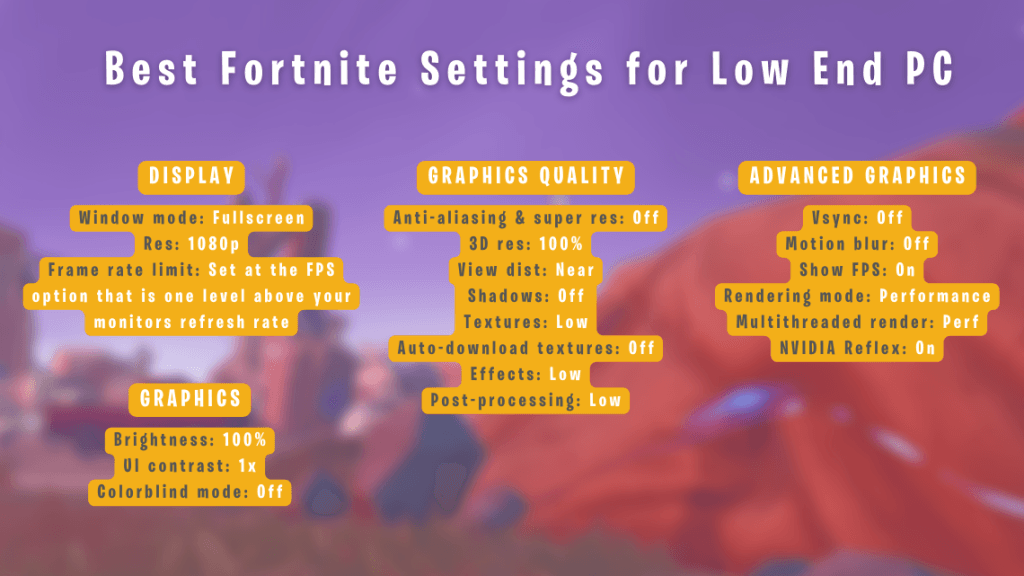
Start at 1280×720 (720p) for a good balance of clarity and performance.
Try 1024×768 or 960×540 for even better FPS on very weak systems.
Avoid resolutions higher than your native display to prevent extra strain.
Lowering resolution may reduce image sharpness, but it drastically reduces lag in Fortnite. Use these tips:
Open Fortnite’s settings menu.
Go to the Video tab.
Set the resolution to a lower value that matches your system’s capabilities.
Apply changes and test for FPS improvements.
| Resolution | Performance Impact | Visual Quality |
| 1920×1080 (1080p) | High resource use | Sharpest |
| 1280×720 (720p) | Moderate | Good |
| 1024×768 | Low | Fair |
| 960×540 | Very low | Acceptable |
Lowering Texture Quality
Texture quality affects how detailed surfaces appear in Fortnite. High texture settings demand more video memory and processing power. Lowering texture quality can free up system resources, improve game performance, and reduce lag in Fortnite.
For a low-end PC, it is best to set texture quality to low or medium. This adjustment uses less VRAM, allowing your PC to run the game more smoothly.
- Low Texture Quality: Simplifies details and improves FPS; ideal for older GPUs.
- Medium Texture Quality: Balanced look with decent performance.
- High Texture Quality: Best visuals but heavy on system resources.
Use these steps to adjust texture quality:
- Navigate to Fortnite’s Graphics Settings.
- Locate the Texture Quality option.
- Choose Low or Medium depending on your PC’s capability.
- Save changes and check gameplay smoothness.
Reducing texture quality is a key Gaming Pc Tweaks tip. It helps manage system resources efficiently, allowing for more stable frame rates and less stuttering.
Disabling Shadows
Shadows add realism but consume a significant portion of graphics processing power. Disabling shadows is one of the most effective Fortnite visual settings for improving FPS on low-end PCs.
Benefits of disabling shadows:
- Less GPU workload.
- Reduced CPU usage related to shadow calculations.
- Lower heat generation and power consumption.
To disable shadows:
- Open the Video settings in Fortnite.
- Find the Shadows option.
- Select “Off” to completely disable shadows.
- Apply the settings and test performance.
Shadow effects can cause lag in Fortnite, especially in crowded environments. Turning them off helps maintain smooth gameplay in Fortnite by reducing frame drops and input lag.
Turning Off Effects
Special effects like motion blur, bloom, and post-processing can look nice, but they often degrade performance. Turning off these effects is important for low-end PC gaming to keep frame rates high.
Effects to disable for Fortnite optimization:
- Motion Blur – Blurs moving objects, adding strain on the GPU.
- Bloom – Creates glowing light effects, costly on performance.
- Post Processing – Enhances visual quality but uses system resources.
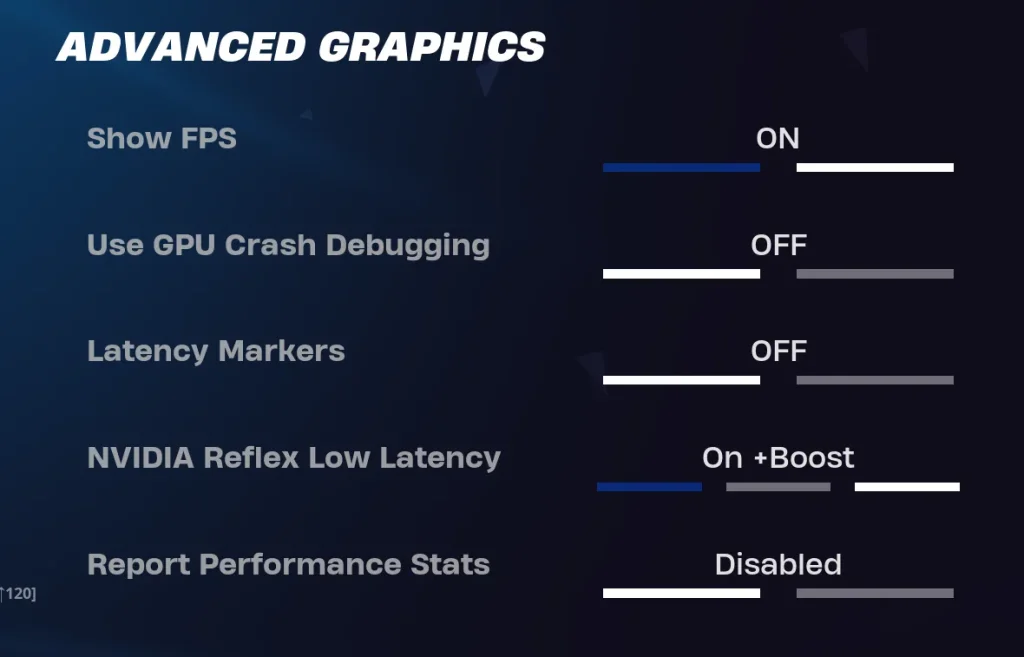
- V-Sync – Can cause input lag; better off for low-end PCs.
Steps to turn off effects:
- Go to Fortnite’s Graphics Settings.
- Locate each effect option.
- Toggle each effect off.
- Apply changes and play to confirm smoother gameplay.
Disabling unnecessary effects helps in system resource management. This reduces lag in Fortnite and ensures the game runs fluidly on older or weaker hardware.
Credit: www.infinibandta.org
Tweaking Performance Options
Optimizing Fortnite for a low-end PC requires careful tweaking of performance options. These settings help balance game quality and smooth gameplay. Adjusting these options can improve the low-end PC gaming experience with Fortnite FPS Boost, even on machines that struggle with high graphics settings. Proper Fortnite Optimization reduces lag, improves frame rates, and lowers input delay. This section focuses on key tweaks, such as setting frame rate limits, enabling performance mode, and adjusting view distance. Each change makes a noticeable difference in Low-End Pc Gaming.
Setting Frame Rate Limits
Setting a Frame Rate Limit in Fortnite is essential for maintaining stable gameplay on low-end PCs. Without a limit, your PC may try to push the game beyond its capabilities, causing overheating and frame drops. A frame rate limit ensures your system does not overwork, reducing input lag and improving overall performance.
Here are some tips for setting frame rate limits:
- Match your monitor’s refresh rate. If you have a 60Hz screen, set the frame limit to 60 FPS.
- Lower limits for older hardware. Setting a limit of 30-45 FPS can make the game smoother.
- Use in-game settings or third-party tools. Fortnite Graphics Settings include options to set frame rate caps directly.
| Frame Rate Limit | Best Use Case | Benefits |
| 30 FPS | Very low-end PCs | Stable performance, low heat |
| 45 FPS | Low-End Pc Gaming balance | Smoother gameplay, less input lag |
| 60 FPS | Moderate low-end PCs | Good visual quality, balanced performance |
Setting a proper frame rate limit also helps reduce input lag. It avoids sudden frame spikes and keeps gameplay consistent. This simple tweak is a key part of Fortnite Optimization.
Enabling Performance Mode
Performance Mode Fortnite is designed to improve frame rates and reduce system strain. It lowers visual quality to boost performance. This mode is perfect for players with low-end PCs who want smoother gameplay over fancy graphics.
Turning on Performance Mode, Fortnite offers benefits such as:
- Lower graphics quality. This reduces GPU and CPU load.
- Better FPS Boost Fortnite. It increases frame rates significantly.
- Reduced Fortnite System Requirements. Makes the game playable on weaker PCs.
- Improved Low Latency Settings. Less lag during fast action scenes.
To enable Performance Mode:
- Open Fortnite Settings.
- Go to the Video tab.
- Find “Rendering Mode” and select “Performance Mode.”
- Restart the game to apply changes.
This mode is especially helpful for Low-End Pc Gaming. It balances visuals and speed for a smoother experience. Performance Mode Fortnite is a must-use setting for players struggling with frame drops and lag.
Adjusting View Distance
Adjusting View Distance in Fortnite is a critical setting for performance. It controls how far you can see objects in the game world. Reducing this distance lowers the load on your PC, improving frame rates and reducing lag.
Here’s why adjusting view distance helps:
- Less data to process. The game renders fewer distant objects.
- Improved FPS Boost Fortnite. Frame rates increase as the workload drops.
- Lower Fortnite System Requirements. Easier for low-end PCs to handle.
Recommended settings based on PC capability:
| View Distance | Effect on Performance | Best For |
| Near | Highest performance boost | Very low-end PCs |
| Medium | Balanced view and performance | Low-End Pc Gaming |
| Far | High visual quality, lower FPS | Moderate low-end PCs |
Reducing view distance also supports better Low Latency Settings by decreasing the amount of data processed per frame. For smoother gameplay, set the view distance to “Near” or “Medium” on low-end PCs.
Configuring Input And Controls
Configuring input and controls plays a vital role in enhancing Fortnite gameplay smoothness on a low-end PC. Proper settings help reduce input lag, improve response times, and make the game feel more natural. Adjusting controls to suit your play style can lead to better control and quicker reactions. This setup also supports system resource management by minimizing unnecessary strain on your PC hardware. Optimizing input settings complements Fortnite graphics settings to achieve the best balance between performance and playability. Below are key tips for customizing your input and controls to suit low-end PC gaming.
Customizing Key Bindings
Key bindings customization is essential for low-end PC gaming. It allows players to assign the most used actions to keys that feel comfortable and quick to reach. This can speed up building, editing, and combat maneuvers, which improves Fortnite performance optimization and overall gameplay. Use simple and consistent bindings to reduce the time spent searching for keys during intense moments.
Focus on the following points for effective key bindings customization:
- Assign essential actions like building walls, ramps, and traps to easily accessible keys.
- Keep movement keys near your left hand, while combat-related keys should be close to your right hand.
- Replace complex default controls with simpler keys to reduce input lag and increase speed.
- Use keys you can press without moving your fingers too much to avoid delays.
Here is a sample table showing a beginner-friendly key bindings setup:
| Action | Key Binding |
| Build Wall | Q |
| Build Ramp | E |
| Build Floor | F |
| Switch Weapon | 1-5 |
| Reload | R |
| Crouch | Left Ctrl |
Customizing key bindings reduces hand movement and helps you react faster. It also lowers the chances of accidental inputs, which is critical for smooth Fortnite gameplay on low-end PCs.
Optimizing Mouse Sensitivity
Mouse sensitivity settings have a big impact on Fortnite gameplay smoothness and reducing input lag. Too high sensitivity can make aiming jittery, while too low sensitivity slows down your turns and builds. Proper mouse sensitivity settings balance accuracy and speed, improving control and reaction time.
Consider these FPS improvement tips when adjusting mouse sensitivity:
- Start low and increase gradually: Begin with a low sensitivity and raise it slowly until you find a comfortable level.
- Match sensitivity with your DPI: Most gaming mice allow DPI changes. Combine DPI and in-game sensitivity for the best result.
- Test sensitivity in-game: Practice aiming and building to see how your settings feel.
- Avoid very high sensitivity: It can cause over-aiming and reduce accuracy.
Below is a simple example table for mouse sensitivity settings suited for low-end PC gaming:
| DPI | In-Game Sensitivity | Usage |
| 400-800 | 0.05 – 0.10 | Precise aiming and building |
| 800-1200 | 0.10 – 0.20 | Balanced speed and accuracy |
| 1200+ | Above 0.20 | Fast turns but less precise |
Optimizing mouse sensitivity settings is a key part of Fortnite performance optimization. It helps maintain accuracy and speed, especially when system resource management limits your PC’s hardware power. Adjust these settings carefully to enjoy smoother, more responsive gameplay on a low-end PC.
Managing Background Processes
Managing background processes plays a crucial role in improving Fortnite performance on a low-end PC. Many programs run silently in the background, consuming valuable system resources. These hidden tasks reduce the amount of CPU and RAM available for Fortnite, causing lag and lower frame rates. Effective System Resource Management helps free up power so your PC can focus on the game. By optimizing background activities, you can enhance Fortnite Graphics Settings without sacrificing smooth gameplay. This section explains how to close unnecessary applications and adjust power settings to boost your gaming experience.
Closing Unnecessary Applications
Running multiple apps while playing Fortnite eats up valuable memory and processing power. Closing these applications helps reduce game lag and improve FPS in Fortnite. Follow these steps to manage your active programs:
- Check Task Manager: Press
Ctrl + Shift + EscTo open Task Manager and view running processes. - End Unneeded Tasks: Look for apps that use a lot of CPU, memory, or disk resources. Right-click and select End Task to close them.
- Disable Startup Programs: Some apps start automatically with Windows. Disable non-essential programs to save resources.
- Close Browser Tabs: Many open tabs consume memory and slow down your PC.
Here is a simple table showing common resource-heavy applications to close:
| Application | Reason to Close |
| Web Browsers (Chrome, Firefox) | Consumes high RAM and CPU with multiple tabs open |
| Streaming Apps (Spotify, Netflix) | Uses CPU and network bandwidth |
| Background Updaters (Steam, Discord) | Consumes resources during downloads and updates |
| Office Suites (Word, Excel) | Uses memory without adding value during gaming |
Closing these apps helps focus your PC’s power on Fortnite. This is a basic but effective PC Game Optimization Tip for low-end PC gaming. It allows better control over Fortnite Visual Settings and Fortnite Low Latency Settings.
Adjusting Power Settings
Power settings affect how your PC allocates energy to processes. Default settings often limit performance to save battery or reduce heat. Adjusting these settings ensures your CPU runs at full speed, improving Fortnite performance optimization. Here’s how to tweak power options for better gaming:
- Open Power Options: Type “Power & Sleep Settings” in the Start menu and select “Additional Power Settings.”
- Select High-Performance Mode: Choose the High Performance plan or create a custom plan prioritizing maximum CPU usage.
- Disable CPU Throttling: In advanced settings, set the minimum and maximum processor state to 100%.
- Adjust Graphics Settings: Some gaming laptop settings allow you to switch between an integrated and a dedicated GPU. Select the dedicated GPU for Fortnite.
Below is a comparison of power plans and their impact on gaming:
| Power Plan | Performance | Battery Life | Best For |
| Plan, Performance, Battery Life, Best | Moderate | Good | Everyday Use |
| Power Saver | Low | Best | Battery Saving |
| High Performance | Maximum | Poor | Gaming and Heavy Tasks |
Switching to high-performance mode supports Fortnite Performance Optimization and helps reduce game lag. It allows your system to allocate more power to Fortnite’s demanding graphics and gameplay. This setting is essential for enhancing Low-End PC Gaming and improving overall responsiveness.
Updating Drivers And Software
Optimizing Fortnite for a low-end PC requires more than just tweaking in-game settings. Updating drivers and software is crucial for improving game performance. Proper updates ensure better hardware compatibility for Fortnite to run smoothly. Without the latest drivers and system patches, your PC may struggle to run Fortnite at high graphics settings, leading to lower FPS and lag. Regular updates can provide significant FPS improvement tips by fixing bugs and enhancing system efficiency. This section explains how to keep your graphics drivers and game software up to date for better Fortnite optimization and gaming performance tweaks.
Graphics Driver Updates
Graphics driver updates are essential for a low-spec PC configuration running Fortnite. Updated drivers improve communication between your hardware and Fortnite. They fix bugs, add new features, and boost performance. Outdated drivers can cause stuttering, screen tearing, and poor frame rates.
Steps to update your graphics driver:
- Identify your GPU: Check if you have an NVIDIA, AMD, or Intel graphics card.
- Visit the official website: Go to the GPU manufacturer’s site for the latest drivers.
- Download and install: Choose the correct driver version for your operating system.
- Restart your PC: Complete the installation process for changes to take effect.
Benefits of regular graphics driver updates:
| Benefit | Impact on Fortnite |
| Better Hardware Compatibility | Smoother gameplay on low-end PCs |
| Bug Fixes | Reduces crashes and freezes |
| Performance Enhancements | Higher FPS and stability |
| New Features | Improved graphic effects and settings |
Keeping your graphics drivers current is one of the easiest gaming performance tweaks. It ensures Fortnite runs better without needing expensive hardware upgrades.
Game And System Updates
System updates for gaming improve overall stability and security. They help Fortnite perform well on low-spec PCs by optimizing resource use and fixing system bugs. Ignoring these updates can cause conflicts with Fortnite’s game performance settings.
Important updates include:
- Windows or macOS updates: These improve system efficiency and compatibility with games.
- DirectX and Visual C++ Redistributables: Critical for running Fortnite smoothly.
- Fortnite game updates: Epic Games regularly releases patches to optimize graphics and fix issues.
How to check for updates:
- Open your system settings and go to the update section.
- Check for the latest OS updates and install them.
- Visit the Epic Games launcher and update Fortnite.
- Restart your PC after all updates are installed.
Regular updates ensure your PC is prepared for the latest Fortnite graphics settings. This reduces lag and improves frame rate. System updates for gaming are a key part of low-end PC gaming success.
Credit: www.youtube.com
Additional Tips For Stability
Playing Fortnite on a low-end PC requires more than just tweaking graphics settings. Additional tips for stability help keep your game smooth and responsive. These tips focus on improving your system’s overall performance and preventing crashes or freezes. Stability is key to enjoying Fortnite without frustration. Below are important steps to keep your game steady while optimizing your PC for Fortnite.
Using Game Boosters
Game Booster Software can help reduce lag in Fortnite by freeing up system resources. These programs close unnecessary background apps and services, allowing your PC to focus on the game. Using a game booster can improve your Fortnite frame rate and minimize input lag Fortnite.
Benefits of game boosters include:
- Better CPU and RAM allocation for Fortnite
- Reduced background activity that causes stuttering
- Automatic optimization of game settings for FPS boost
- Simplified one-click setup for low-end PC gaming
Here is a simple comparison of popular game booster software features:
| Software | Automatic Optimization | Background App Management | Ease of Use |
| Razer Cortex | Yes | Yes | Easy |
| Wise Game Booster | Partial | Yes | Moderate |
| MSI Afterburner | No | No | Advanced |
To get the best results, combine game booster software with Graphics Settings, Fortnite Low PC adjustments. This combo enhances Fortnite performance optimization and keeps your FPS stable. Remember to update your booster software regularly to match Fortnite’s latest patches and updates.
Monitoring Temperature And Performance
Overheating can cause crashes and reduce your PC’s performance. Temperature monitoring gaming PC
Here are key steps for effective temperature and performance monitoring:
- Install temperature monitoring software like HWMonitor or MSI Afterburner.
- Check temperatures before and during Fortnite sessions.
- Keep CPU and GPU temps below 80°C and 85°C, respectively, for safe operation.
- Clean dust from fans and vents regularly.
- Use a cooling pad if you play on a laptop.
Performance monitoring also helps identify bottlenecks. Use tools like Task Manager or MSI Afterburner to track CPU and GPU usage. If one component runs at 100% while others are low, it may cause a reduction in lag in Fortnite issues.
Monitoring temperature and system load supports Fortnite frame rate improvement by preventing overheating and balancing resources. This step is essential in optimizing a PC for Fortnite and ensuring smooth gameplay on a low-end PC.
Credit: www.mueblesvulcano.com
Frequently Asked Questions
What Are The Best Graphics Settings For Low-end PCs in Fortnite?
Lowering the resolution and setting graphics to low improves performance. Turning off shadows and effects reduces lag and improves the game’s performance.
How Can I Improve Fortnite FPS on a Weak Pc?
Close background apps before playing to free up memory. Use Fortnite’s performance mode to boost FPS on low-end PCs.
Should I Change Fortnite Display Mode For Better Performance?
Yes, use Fullscreen mode for better FPS and less input lag. Windowed mode can cause slower performance on low-end computers.
What Is The Ideal Resolution For Fortnite on low-end PCs?
Try 1280×720 resolution for a good balance between visuals and speed. Lower resolutions help the game run faster on weak machines.
How Does Turning Off Shadows Affect Fortnite Gameplay?
Turning off shadows reduces lag and increases FPS significantly. Shadows use a lot of resources, so disabling them helps smooth gameplay.
Can I Improve Fortnite Input Lag On A Low-end Pc?
Set the game to full-screen mode and lower graphics settings. Also, disable V-Sync to reduce input lag and improve response time.
Conclusion
Finding the best Fortnite settings helps your low-end PC run smoother. Lowering graphics and turning off extra effects can boost performance. Simple changes make the game less laggy and easier to play. You get better frame rates and faster response times.
This means more fun and less frustration. Try these settings step by step to see what works best. Play comfortably without worrying about slowdowns. Enjoy Fortnite even with basic computer hardware. Keep adjusting to find your perfect balance between quality and speed.
About the Author
Jahedul is a gaming content publisher and researcher who specializes in gaming optimization, performance tuning, and practical gameplay improvement guides. Through Zenvorxa, he focuses on helping players get better gaming experiences by simplifying complex settings, explaining performance tweaks, and sharing easy-to-follow gaming solutions. His content is designed for both beginners and experienced players looking to improve performance, increase FPS, and enjoy smoother gameplay on PC and mobile devices.