Fortnite settings are customizable options that affect gameplay, controls, and graphics, optimizing the player experience and performance.
Are you ready to take your Fortnite game to the next level? Your settings can make all the difference between winning and losing.
Small tweaks to your controls, graphics, and sensitivity can boost your performance and give you the edge over your opponents. You’ll discover the best Fortnite settings tailored to help you play smarter and faster. Keep reading to unlock the secrets that could transform your gameplay right now.
Optimizing Graphics Settings
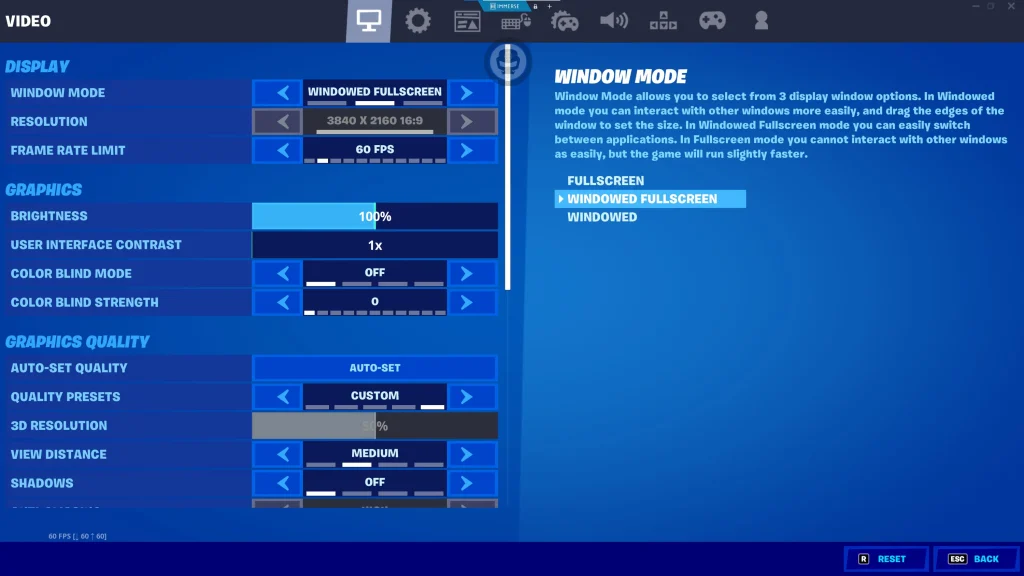
Optimizing graphics settings in Fortnite helps improve gameplay and visual clarity. Adjusting these settings can boost your frame rate and reduce lag. It also makes the game look better on your screen. Small changes can create a big difference in performance. Focus on settings that match your PC or console’s power. This balance keeps your game smooth and enjoyable.
Choosing The Right Resolution
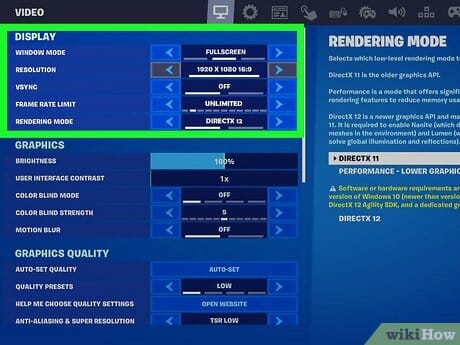
Resolution controls the sharpness of the game image. Higher resolutions show more detail but need more power. Lower resolutions increase frame rates but may look blurry. Select a resolution that your monitor supports well. A common choice is 1920×1080 for clear visuals and good speed. Match the resolution with your screen size for best results.
Adjusting Frame Rate Limits
Frame rate limits how many frames are shown per second. Higher frame rates make gameplay smoother. They help with faster reactions and better aiming. Set the frame rate limit to your monitor’s refresh rate. For example, 60Hz monitors do well with a 60 FPS limit. If your device struggles, lower the frame rate for steady play.
Balancing Visual Effects And Performance
Visual effects make Fortnite look more exciting. Shadows, textures, and lighting add realism. But these effects use a lot of computer power. Turn off or reduce effects to improve speed. Set textures to medium or low for better FPS. Keep some effects on for a nice look without lag.
Credit: embody.co
Customizing Controls
Customizing controls in Fortnite helps you play better and faster. It lets you set up the game just how you like. Good controls make building and fighting easier. You can change keys, buttons, and sensitivity. This makes your gameplay smooth and comfortable. Small changes can lead to big improvements in your game.
Best Key Bindings For Building
Building fast is very important in Fortnite. Choose keys that are easy to reach. Many players use keys like Q, E, and F for quick building. Assign stairs, walls, and floors to buttons you press without moving your hand too much. Avoid keys far from your movement keys. Practice with your new setup to get faster.
Controller Sensitivity Tips
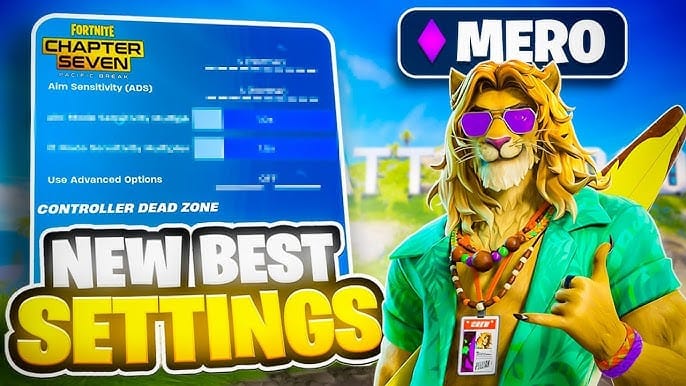
Controller sensitivity controls how fast you turn and aim. Set it too high, and you lose control. Set it too low, and you turn too slow. Find a middle ground that feels right. Try small changes and test in-game. Higher sensitivity helps with quick moves, but lower sensitivity helps with accuracy. Adjust each setting separately for aiming and building.
Using Advanced Control Options
Fortnite offers advanced control settings to customize gameplay. You can change dead zones, aim assist, and controller layout. Dead zones determine how far you have to move the stick before it reacts. Smaller dead zones give faster response but can cause jitter. Aim Assist helps you aim better on controllers. Choose a layout that matches your style. Spend time testing these options for the best fit.
Audio Settings For Better Awareness
Good audio settings help you hear the game better. Sound is key to knowing where enemies are. Adjusting your audio can make you alert and ready. Small changes can improve your game awareness a lot.
Setting Up Sound Effects
Turn up sound effects to hear footsteps and gunfire clearly. Lower other sounds to avoid distraction. Focus on sounds that tell you about enemy moves. This helps you react faster and stay aware.
Using Headphones For Positional Audio
Use headphones to hear which direction sounds come from. Positional audio helps locate enemies around you. It gives a better sense of space and distance. This makes your gameplay sharper and more precise.
Adjusting Music And Voice Chat Volumes
Lower the music volume to avoid missing important sounds. Keep voice chat loud enough to hear teammates clearly. Balance these volumes to stay focused and alert. Clear communication improves teamwork and game awareness.
Network And Connection Settings
Network and connection settings play a key role in Fortnite gameplay. These settings affect how fast your commands reach the game servers. A good connection reduces delays and improves your chances of winning. Poor settings can cause lag and disrupt your experience.
Reducing Latency And Ping
Latency is the time your device takes to send data to the server. Ping measures this delay in milliseconds. Lower ping means smoother gameplay. Close apps that use the internet to reduce lag. Use a wired connection instead of Wi-Fi to improve stability. Restart your router regularly to clear network issues.
Choosing The Best Server Region
Fortnite allows you to pick a server region. Choose the server closest to your location. This choice lowers ping and improves response time. Playing on distant servers causes lag and slow reactions. Always check your ping before selecting a server. Switch servers if your ping is too high.
Using Network Optimization Tools
Network tools help improve your connection quality. Use apps that prioritize gaming traffic to reduce lag. VPNs can sometimes lower ping by finding better routes. Test different tools to find what works best. Keep your software updated for the best results.
Gameplay Settings To Enhance Performance
Gameplay settings in Fortnite affect how you play and react. Small changes can improve your speed and accuracy. Adjusting these settings helps you build, edit, and aim better.
Finding the right balance in controls makes the game easier and more fun. This section covers key gameplay settings that enhance your performance.
Configuring Building Sensitivity
Building sensitivity controls how fast your view moves while building. Higher sensitivity means quicker turns but less control. Lower sensitivity gives more precision but slower movement.
Set building sensitivity to match your comfort. Test different settings in practice mode. Choose one that helps you build fast without losing accuracy.
Adjusting Edit Mode Options
Edit mode changes how you change structures in Fortnite. Enabling “hold to edit” can avoid mistakes by requiring a longer press. Disabling it speeds up edits but may cause errors.
Try both options to see which fits your style. Use “confirm edit on release” to speed up edits. This setting sends the edit as soon as you let go of the mouse.
Utilizing Aim Assist Effectively
Aim assist helps with aiming on controllers. It slightly moves your aim toward targets. This makes shooting easier, especially at moving enemies.
Keep aim assist on if you use a controller. Adjust its strength in settings for comfort. Avoid relying on it too much to improve your skill.
Credit: www.youtube.com
Utilizing In-Game HUD and Interface
The in-game HUD and interface in Fortnite show important information. It helps players track their health, ammo, and map. Using the HUD well can improve your gameplay. It makes sure you see what matters most without distractions. Adjusting the interface suits your style and makes the game easier to play.
Customizing HUD Layout
In Fortnite, you can move and resize HUD elements. You can place the map, health bar, and ammo count where you want. Find spots that don’t block your view but are still easy to check. Custom layouts help you focus on the action. Try different setups to see what fits your play best.
Enabling Important Notifications
Notifications warn about nearby enemies or shrinking safe zones. Turn on alerts for threats and vital game events. These warnings give you time to react and plan your moves. Set notifications to pop up clearly but not too often. This way, you stay alert without feeling overwhelmed.
Minimizing Screen Clutter
Too many icons and messages can distract and slow you down. Hide HUD elements you do not need. Keep only the basics visible, like health and ammo. A clean screen helps you spot enemies and targets faster. Less clutter means better focus and quicker decisions.
Hardware And System Tweaks
Hardware and system tweaks can improve your Fortnite experience. Adjusting your PC and peripherals helps the game run smoother. Small changes make a big difference in gameplay and graphics quality.
Optimizing Pc For Fortnite
Close all unnecessary programs before playing Fortnite. This frees up memory and CPU power. Lower your graphics settings if your PC lags. Set the game to run in full-screen mode for better performance. Use the latest Windows updates to keep your system stable. Disable background apps that use the internet or CPU resources. Clean your PC regularly to avoid overheating and slowdowns.
Recommended Peripherals
Choose a gaming mouse with adjustable DPI for better aiming. A mechanical keyboard offers faster response times. Use a monitor with a refresh rate of at least 60Hz for smoother visuals. Headphones with clear sound help detect enemy movements. A good mouse pad improves precision and comfort. Invest in a reliable internet connection to reduce lag and disconnections.
Keeping Drivers And Software Updated
Update your graphics card drivers regularly for better performance. Check your motherboard and sound card drivers, too. Use the official websites or trusted software to download updates. Keep Fortnite up to date to access new features and fixes. Update your operating system to improve security and stability. Avoid beta drivers unless you know what you are doing.
Credit: www.wikihow.com
Frequently Asked Questions
What Are The Best Fortnite Settings For Beginners?
Start with medium graphics and simple keybinds. Lower sensitivity helps control aiming. Adjust settings slowly as you improve.
How To Improve Fortnite Aiming With Settings?
Use a low to medium sensitivity for better control. Enable aim assist if playing on a controller. Practice aiming in creative mode.
Which Fortnite Settings Boost Game Performance?
Lower graphics quality and turn off shadows. Close background apps to free up memory. Use a wired internet connection for stability.
What Keybinds Help Build Faster In Fortnite?
Assign building pieces to easy-to-reach keys. Use mouse buttons if available. Practice building combos to increase speed.
How To Change Fortnite Settings For Better Visibility?
Increase brightness and contrast in video settings. Turn off motion blur and shadows. Use simple graphics to clearly see enemies.
Conclusion
Choosing the right Fortnite settings improves your gameplay a lot. Small changes in controls and graphics can help you play better. Try different settings to find what feels best for you. Keep adjusting as you gain experience and skills. Playing comfortably makes the game more fun and less stressful.
Remember, good settings suit your style, not just others’. Take time to explore and enjoy the game fully. Your best Fortnite experience starts with the right settings.
About the Author
Jahedul is a gaming content publisher and researcher who focuses on practical gaming guides, performance optimization, and gameplay improvement strategies. Through Zenvorxa, he creates beginner-friendly content designed to help players understand game mechanics, improve settings, boost performance, and make informed gaming decisions. His work emphasizes clear explanations, real-world usability, and a better gaming experience across PC and mobile platforms.